Phone shorts
Turn a video you shot on your phone into a captioned vertical short with the post copy already written, without opening an editor. It’s part of the free Studio tier, and nothing posts until you approve it.
How it works
- Record a vertical video on your phone.
- Save it to a folder that syncs to your Mac, like Google Drive, Dropbox, or iCloud.
- Postwright notices the file, transcribes it, and burns in captions.
- It drafts YouTube, Instagram, and LinkedIn copy in your brand’s voice.
- The short waits for you in the app, and on Telegram if you use it.
- You approve it. It posts to YouTube Shorts, Instagram Reels, and LinkedIn.
Each video gives you:
- A 1080×1920 video with captions burned in, placed clear of the Instagram and YouTube Shorts controls, with the loudness evened out.
- A small preview copy for quick review.
- Copy for each platform: a YouTube title, description, and hashtags; an Instagram caption and hashtags; and a LinkedIn post and hashtags. It’s written in the first person as your brand’s author, using the voice notes and audience from Settings > Brand.
The copy only restates what you said in the video. It won’t invent details, and it mentions an event or a place only if you did.
Videos can be .mp4, .mov, or .m4v. YouTube treats anything over three minutes as a regular video rather than a Short, so keep phone shorts to three minutes or less.
Set it up
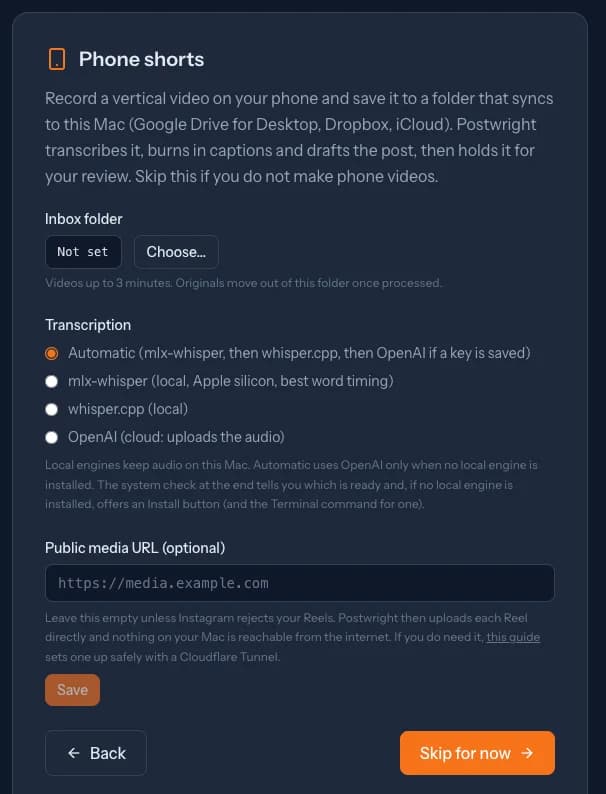
The setup wizard has a phone-shorts step. You can also do this later in Settings > Phone shorts.
- Pick the inbox. Choose the folder your phone saves into. Any folder that syncs to your Mac works. For Google Drive, install Drive for Desktop, create a folder such as
Phone Shorts, and choose it. On your phone, share or move the video into that folder. - Choose how to transcribe. Run the one-time local setup (free, and the audio never leaves your Mac), or pick OpenAI and add an OpenAI key under Connections. With OpenAI, each video’s audio is uploaded to OpenAI.
- Make sure ffmpeg can burn captions. Homebrew’s plain
ffmpegcan’t. The local setup installsffmpeg-fullfor you; if you use OpenAI only, runbrew install ffmpeg-fullyourself. - Connect an AI for the copy (see Connections). Without one, videos still transcribe and render, then wait. They pick up where they left off as soon as an AI is connected.
- Connect where it posts: YouTube, Instagram, and LinkedIn, plus Telegram if you want to approve from your phone. Each is optional; a channel you haven’t connected is skipped with a clear message and the others still post.
The local setup needs Homebrew. Run this once in Terminal:
"$HOME/Library/Application Support/Postwright/app/scripts/setup-transcription.sh"It installs ffmpeg-full and whisper.cpp, sets up mlx-whisper on Apple silicon, and downloads the speech models, so transcription never needs the network afterwards. The system check at the end of the wizard, and in Settings > System check, tells you whether ffmpeg, a transcription engine, and the inbox are ready.
Review and approve
A finished short waits in Video Review > Phone shorts.
- Watch it. The player shows the preview. Tick Play the full-quality render to see the exact file that will post.
- Edit the copy. Every platform’s text is editable, and each limit shows as you type. If a platform would refuse something, you see why. Nothing gets trimmed behind your back. Save edits keeps your changes without approving.
- Approve & schedule posts exactly what’s saved. Reject closes the short and nothing posts.
All three channels post together at the next open slot. That slot is at least two minutes away, keeps a minimum gap from anything else queued on those channels, and is never inside your quiet hours (9pm to 7am by default, in your time zone). After you approve, the card shows each channel’s state: scheduled, publishing, published with a link, or failed with the reason.
On Telegram. With a Telegram bot connected, each short also arrives as a message with the preview, the copy, and Approve and Reject buttons. The app and Telegram stay in step: decide in one place and the other shows it. If you edit the copy in the app, the Telegram message isn’t updated, but approving from either place posts the latest saved copy.
Where it posts
| Channel | How |
|---|---|
| YouTube Shorts | Uploaded with your YouTube connection. Three minutes or less posts as a Short. |
| Instagram Reels | Meta Graph API, with your Instagram connection. Postwright uploads the video to Meta directly; nothing on your Mac is exposed. A failed Reel retries twice. |
| Posted as a video on your personal profile, through your signed-in LinkedIn session. |
If Instagram keeps rejecting a Reel, you can let Meta fetch it from a short-lived link instead. See Public media URL. Most installs never need it.
What happens to the original
About a minute after the upload settles, Postwright moves the original out of your inbox into a hidden .claimed folder inside the processed folder, on the same drive, and works from that copy. When the short is done, the original is filed in the processed folder (in failed if it didn’t work out). The processed folder defaults to _processed next to your inbox. A new recording with the same file name is treated as a new short.
Transcription engines
| Setting | What it does |
|---|---|
| Automatic (default) | Uses a local engine if one is installed. Falls back to OpenAI only when no local engine is installed, never after a local engine fails. |
| mlx-whisper | Local, Apple silicon. The best word timing for captions. |
| whisper.cpp | Local. Word timing runs a little early, and Postwright corrects for it by snapping to pauses. |
| OpenAI | Cloud. Needs an OpenAI key, and uploads each video’s audio. |
Troubleshooting
- Nothing happens when I save a video. A file is picked up only once its size has stopped changing for about a minute, so give a large upload time. Then check the status line at the top of Settings > Phone shorts.
- The inbox looks empty, but the cloud folder has files. macOS protects folders under Google Drive, Dropbox, and iCloud and doesn’t tell you when it blocks an app. Allow Postwright in System Settings > Privacy & Security > Files and Folders (or Full Disk Access), then restart Postwright.
- It says it’s waiting. The video is fine; something on this Mac is missing, such as ffmpeg-full, a transcription engine, or an AI connection. The message names the fix, and Postwright keeps retrying without using up attempts.
- Google Drive files are online-only. In Drive’s “Stream files” mode a video can exist only as a placeholder. Mark the folder Available offline, or switch to “Mirror files”.
- “No speech detected.” Phone shorts are driven by what you say. A silent video is marked failed and its original moves to
failedin the processed folder. Move it back to the inbox to try again. - I approved it but nothing posted. Posts go out at the scheduled slot, not the moment you approve. If a channel failed, its reason is on the card. The usual cause is a channel that isn’t connected or a LinkedIn session that signed out.