Connections
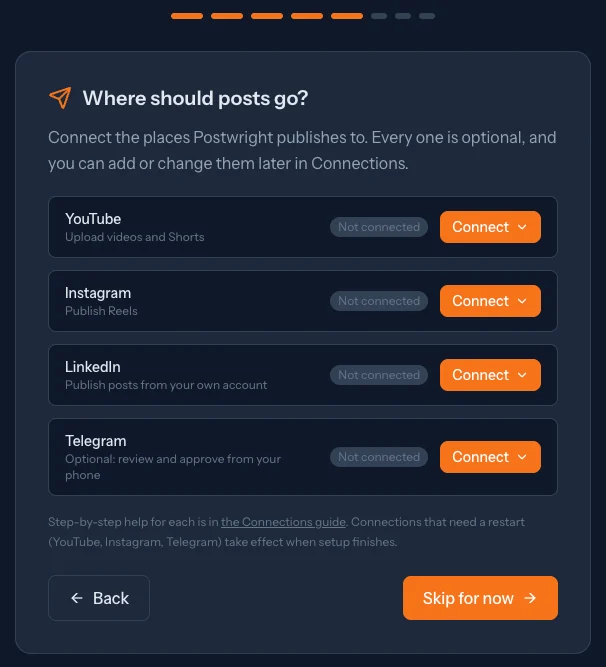
Postwright drafts and posts with your own accounts and keys. Every connection is optional: add the ones you use, when you need them. The setup wizard asks for them in order, and Connections in the sidebar manages them afterwards.
At a glance
| Connection | What you need |
|---|---|
| AI | An Anthropic, OpenAI, or Google API key, or Claude Code installed and signed in |
| YouTube | Your own Google Cloud OAuth client, type Desktop app |
| An Instagram professional account, a Meta app, and a long-lived token | |
| Your normal LinkedIn sign-in | |
| Telegram | A bot token and a chat ID |
Keys are encrypted on your Mac and sent only to the service they belong to. AI keys and LinkedIn apply right away. YouTube, Instagram, and Telegram take effect after Postwright restarts: the last step of the wizard does that for you, and later changes show a Restart to apply banner.
AI: a key or Claude Code
Postwright uses AI to pick clips and draft titles, descriptions, and posts. Without an AI connection those features are off and everything else still works.
An API key. Create one with the provider, paste it in, and choose Save and check. Postwright checks the key with the provider before keeping it.
- Anthropic: console.anthropic.com, under Settings > API keys
- OpenAI: platform.openai.com/api-keys
- Google AI: aistudio.google.com/apikey
The provider bills you per use. Set a daily spend cap in Settings > AI.
Claude Code instead of a key. If the claude command is installed and signed in, the wizard shows Detected and a Use Claude Code button. Postwright then drafts with your Claude subscription and needs no API key. Installed it after the wizard opened? Choose Detect again.
You can connect more than one. Settings > AI chooses which provider and model handle each task.
YouTube
Postwright uploads through the YouTube Data API with an OAuth client that you create in your own Google Cloud project. Nothing is shared with anyone else and there’s no review to wait for. It’s a one-time setup of about five minutes.
1. Create a project and turn on the API
- Open console.cloud.google.com and create a project. Any name works.
- Go to APIs & Services > Library, search for YouTube Data API v3, and choose Enable.
2. Set up the consent screen
- Open Google Auth Platform (it used to be called the OAuth consent screen) and start the setup.
- Enter an app name and your email address, and choose External.
- When Google asks whether the app is agentic, choose not agentic. See the note below.
- Set the publishing status to In production (Audience > Publish app). While an external app is in Testing, Google signs it out every 7 days. In production the sign-in lasts.
Google will show an “unverified app” notice when you sign in, because the client is yours and hasn’t been reviewed. That’s expected for your own use: choose Advanced, then Go to your app.
3. Create the OAuth client
- Go to Credentials > Create credentials > OAuth client ID.
- Set Application type to Desktop app. Don’t pick “Web application”: Postwright signs in through a local address on your Mac, which only a Desktop app client allows without extra setup.
- Create it, then copy the client ID and client secret.
4. Sign in from Postwright
Paste the client ID and secret into the YouTube card and choose Sign in with Google. Pick the account that owns the channel and allow access. When you come back, the card reads Connected.
If sign-in fails, the card says why:
- Google rejected the client ID or secret. Copy them again, and check the client type is Desktop app.
- Google didn’t return a refresh token. Remove Postwright at myaccount.google.com/permissions and sign in again.
- Access blocked, with no way forward. The consent screen is still in Testing and your account isn’t a test user. Publish it to production (step 2), or add yourself as a test user.
Postwright publishes Reels and posts through the Meta Graph API. You need:
- An Instagram professional account (Business or Creator) linked to a Facebook Page.
- A Meta developer app (developers.facebook.com) with the
instagram_business_content_publishpermission. - A long-lived access token for that app, and the account’s Instagram user ID.
To find the user ID, ask the Graph API for the Page’s linked account: GET /v20.0/{page-id}?fields=instagram_business_account. Paste the token and ID into the Instagram card and choose Save and test. Postwright makes a read-only call and, if Meta refuses, shows Meta’s own error.
If Instagram rejects your Reels with a vague “processing failed”, the optional public media URL lets Meta fetch the file instead. Most installs never need it.
LinkedIn offers no publishing access Postwright can use, so it posts through a browser signed in as you. Choose Open LinkedIn sign-in and a browser window opens on LinkedIn’s login page. Sign in the way you normally do, including any verification step. Postwright never sees your password. It waits up to five minutes for the signed-in session, closes the window, and keeps the session in a browser profile on your Mac.
- If a post is publishing at that moment, you’ll be asked to try again in a minute. The sign-in window needs the same browser profile.
- Closed the window early, or ran out of time? Nothing changes. Choose the button again.
- If LinkedIn signs you out later, the card goes back to Not connected. Sign in again the same way.
Telegram (optional)
Telegram is a convenience: alerts, and approving posts from your phone. The approval screens in the app work without it.
- In Telegram, message @BotFather, send
/newbot, and follow the prompts. Copy the bot token it gives you. - Open a chat with your new bot and send it any message. For a group, add the bot to the group and send a message there.
- Find the chat ID: open
https://api.telegram.org/bot<token>/getUpdatesin a browser, with your token in place, and readchat>idfrom your message. A group’s ID is a negative number. - Paste both into the Telegram card and choose Save and send test message. The bot posts a test message, and if Telegram refuses, the card shows its reason. For example, “chat not found” means nobody has messaged the bot yet.